How to create a QR code for a restaurant menu
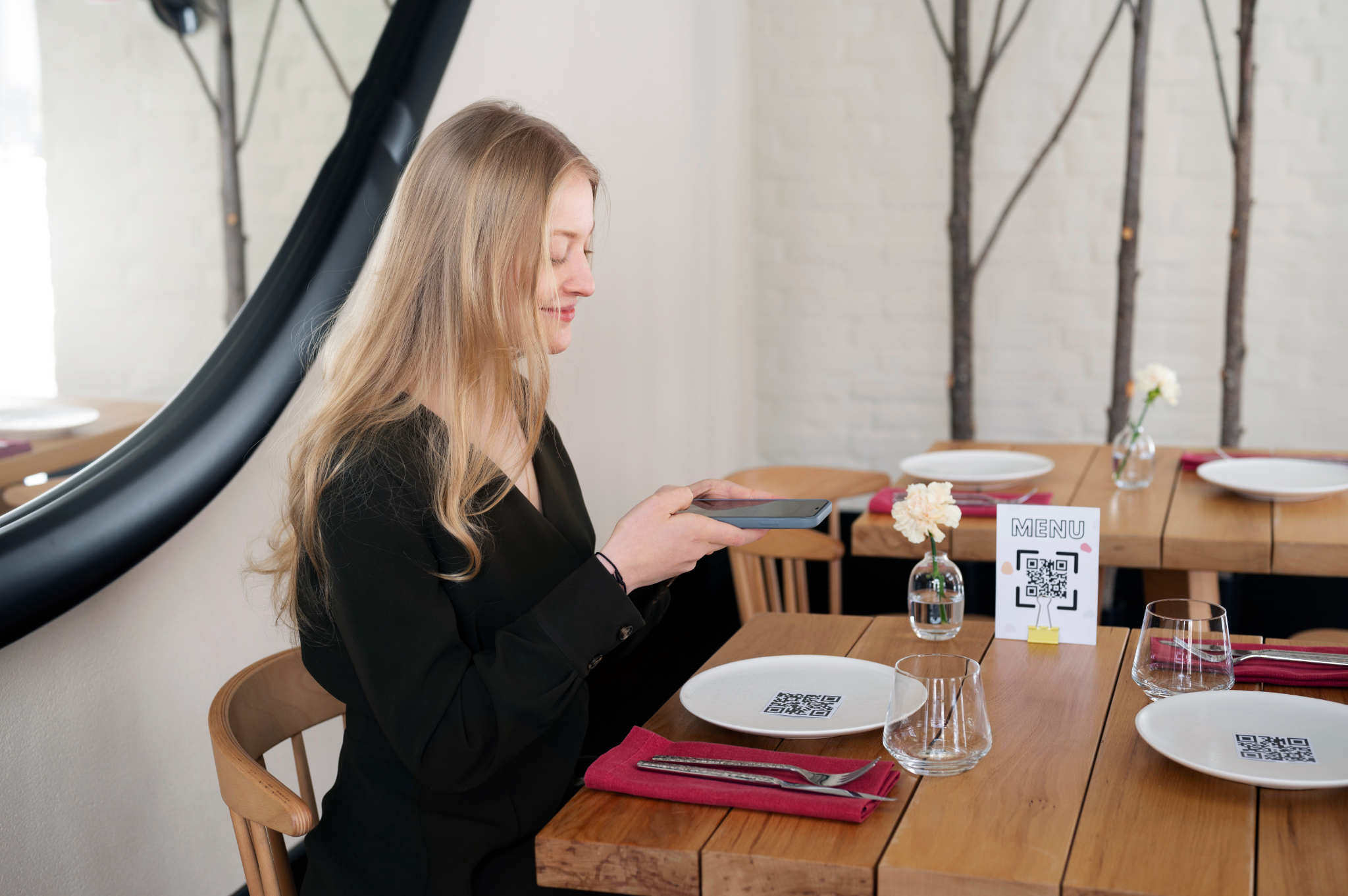
Most restaurant owners create a QR menu in five minutes and wonder why customers ignore it. The code works. The menu loads. But nobody scans. That gap between technically correct and actually effective is what this guide closes.
Here’s what actually matters. The format decisions that affect scan rates, the placement choices that determine whether customers engage, and the setup mistakes that silently kill the experience before it starts.
What a restaurant menu QR code actually is
A menu QR code is a scannable image that sends customers to a digital version of your menu. Point your phone camera at it, tap the notification, and the menu opens. No app download, no typing, no waiting for a server to bring a laminated card.
But "sending customers to a digital menu" covers a lot of ground. That destination can be a PDF, a mobile webpage, an ordering system, or a dedicated menu app. Each works differently, performs differently on mobile, and requires a different setup. Picking the wrong format upfront is the most common mistake, and it affects every customer interaction from that point on.
PDF vs webpage vs ordering system: What actually works
This is the decision most guides skip. They tell you to "create a digital menu" without explaining that the format shapes the entire experience.
PDF menus are the fastest option to set up. Export your existing menu design as a PDF, upload it somewhere (Google Drive, Dropbox, your website), and link the QR code to that file. The problem: PDFs are not built for mobile. Customers pinch and zoom to read text. The file takes time to load on slower connections. You can't update prices without replacing the file and, if you're using a static QR code, regenerating and reprinting the code entirely.
Mobile webpages load faster, scale properly on any screen size, and can be updated any time without touching the QR code (as long as you're using a dynamic QR code, which is covered below). If your restaurant has a website, add a dedicated
/menupage and point the QR code there. If you don't have a website, platforms like Google Sites, Notion, or simple restaurant website builders let you create a clean, free menu page in under an hour.Ordering system pages are tools that let customers browse, order, and sometimes pay directly from the QR scan. They are a different category entirely. They involve more setup, usually a monthly cost, and significant workflow changes for your staff. For a full-service restaurant focused on hospitality, they can feel impersonal. For fast-casual, cafés, and high-volume spots, they dramatically reduce order errors and server workload. Only go this route if you're committed to changing how your front-of-house operates.
Step-by-step: Creating a restaurant menu QR code on iPhone
Step 1: Get your menu online
Before generating any QR code, the destination needs to exist. If you're using a PDF, have the file uploaded and accessible via a public URL. If you're using a webpage, make sure it's live and loads correctly on mobile, not just on desktop.
Test the URL yourself on your phone before doing anything else. If it's slow, breaks on a small screen, or requires a login to access, fix that first. A QR code that points to a broken or ugly experience is worse than no QR code at all.
Step 2: Open QR Code Air and select URL type
Open QR Code Air on your iPhone. Tap the generator, and select URL as your QR type. This is the correct format for menu QR codes. It encodes a web address that the phone visits when scanned.
Paste your full menu URL into the field. Include the full address starting with https:// because partial URLs or shortened links without the protocol can cause scanning failures on some devices.
Step 3: Choose dynamic over static
If the app gives you the option between static and dynamic, choose dynamic. A dynamic QR code stores a short redirect URL in the pattern rather than your actual menu URL. That means if your menu URL ever changes (you rebuild your website, switch hosting, rename the page), you update the redirect and the printed QR code still works.
For a restaurant specifically, dynamic QR codes are almost always the right choice. Menus change. Prices change. Seasonal items come and go. A static code locks you to whatever URL you encoded at creation time.
Step 4: Customise to match your brand
This is where most restaurants either skip entirely or go too far. A plain black-and-white QR code works fine. But a QR code in your restaurant's brand colors, with your logo in the center, looks intentional. It reads as part of the experience rather than a technical afterthought.
QR Code Air supports custom colors and logo placement. Keep these rules in mind:
The foreground (the dark modules) must stay significantly darker than the background. Low contrast is the top reason QR codes fail to scan in dim restaurant lighting.
If you place a logo in the center, the logo should cover no more than 30% of the code area. The QR format has built-in error correction that lets it scan with a portion obscured, but only up to a point.
Round corner dots (the three squares in the corners of any QR code) are fine. Extreme pattern distortions are not.
Practical guidance on this is covered in depth in the QR code design best practices guide, worth reading before you finalise the look.
Step 5: Export at print-ready resolution
For table tents, coasters, and printed menus, export as SVG or PDF. These are vector formats that stay sharp at any size. PNG works but should be exported at the maximum available resolution. A pixelated QR code printed on a table tent will scan inconsistently, especially in low light.
The minimum print size for reliable scanning at table distance is roughly 1.2 inches square (3 cm). Anything smaller introduces failure risk. For floor signs or window decals meant to be scanned from further away, size up significantly. The ratio of scan distance to code size matters.
Step 6: Test before you print anything
Scan the exported file with three different devices: your own iPhone, an Android if you can find one, and ideally an older smartphone. Test in a dimly lit room to simulate actual restaurant conditions. Confirm the menu loads fully, displays correctly on a small screen, and doesn't require any login or pop-up dismissal to read.
This step sounds obvious. It gets skipped constantly. And restaurants end up printing 50 table tents with a QR code that opens a login wall or a desktop-formatted PDF that requires six pinch-zooms to read a starter.
Where to place QR codes in a restaurant (And where not to)
Placement determines whether your QR code gets used.
Best placements
Table tents and table surfaces
Highest engagement
Customers are already seated and ready to order
Windows and entrance areas
Good for attracting walk-ins
Works as passive marketing
Receipts and packaging
Keeps your menu in customers’ minds post-visit
Useful for repeat orders
What to avoid
Glossy surfaces that reflect light
Dark backgrounds that reduce contrast
Hard-to-reach placements
Tiny codes that require precision scanning
If scanning requires effort, customers will not bother.
The failure points nobody talks about
Most QR menu guides focus entirely on generation and skip the reasons good setups fail in practice.
The menu URL goes down. If your menu lives on a platform that has outages, or if you let a domain expire, every QR code in your restaurant becomes a dead end. Use a reliable host and set domain renewal to auto-renew. If you're using a dynamic QR, you can redirect to a backup URL within minutes without reprinting anything.
The menu isn't mobile-optimised. A desktop-formatted menu loaded on a phone is a bad experience. Customers close it, ask for a paper menu, and don't scan again. Before printing, test your menu URL on the smallest phone you can find and make sure every item is readable without zooming.
Nobody tells customers the code exists. A QR code with no label is a missed opportunity. Staff should mention it during seating. Table tents should say "Scan to view our menu", not just display a code. This is the single highest-impact change most restaurants make after their first week with a QR menu.
The code is too small to scan from a seated position. If your table tent has a QR code smaller than an inch square, seated customers at arm's length will struggle. Size it generously. Scanning failure is invisible. You'll never see a customer struggle; they'll just quietly ask for a paper menu.
If you're running into persistent scanning issues, the guide on why QR codes stop working covers every common failure point with specific fixes.
Adapting QR menus to your restaurant type
Fine Dining
Subtle, elegant placement
Clean, high-end webpage
Minimal visual clutter
Casual Dining
Table tents work well
Clear instructions
Fast-loading menu
Fast Casual
Place near ordering points
Optimize for speed and clarity
Reduce decision time
Food Trucks
Weatherproof signage
Mobile data optimization
Large, visible QR codes
Getting it live
A complete setup usually takes a few hours the first time. You’ll need to build a mobile-friendly menu page, generate your QR code, test it across different devices, and then print and place it where customers will actually use it. Each step matters, especially testing and placement.
After that, maintenance is simple. Updating your menu becomes a quick page edit instead of reprinting materials. That’s where QR menus start to pay off. The restaurants that get real value from this treat it as part of their system. They keep the menu updated, watch how customers use it, and adjust placement or messaging based on what they see in real life.