Why is my QR code not working? 12 Common problems and fixes
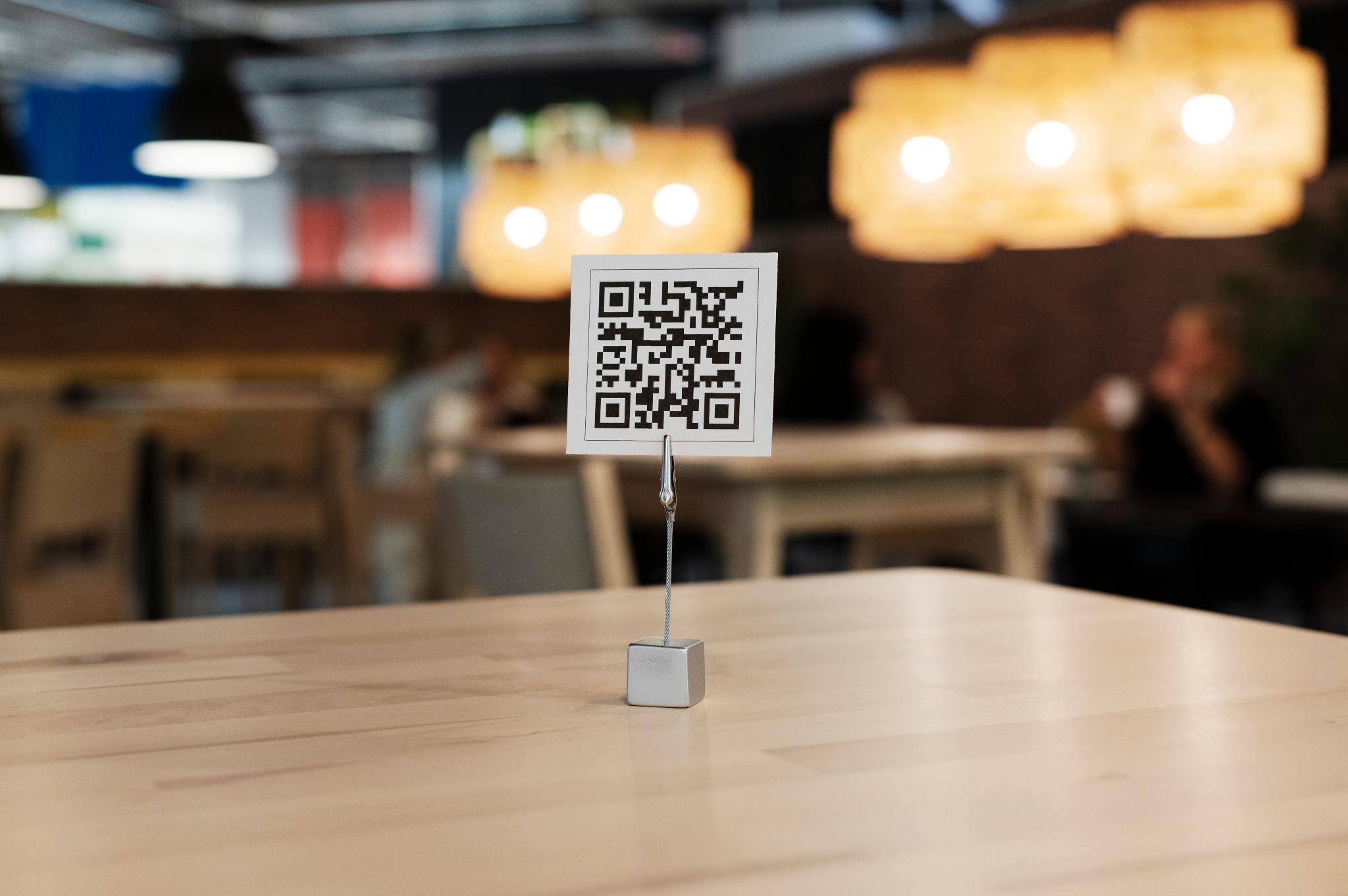
QR codes are supposed to work instantly. You point your camera, scan, and the link opens. So when a QR code does not scan, shows an error, or redirects incorrectly, it can be frustrating.
If you’re wondering why your QR code is not working, the issue usually falls into one of a few common categories: poor image quality, formatting mistakes, scanning problems, or expired links.
Below are the 12 most common reasons QR codes fail and exactly how to fix them.
The QR code is too small
QR codes need enough visual detail to be scanned. If the code is printed too small or displayed at a tiny size on screen, the camera cannot detect the pattern clearly.
Fix:
Increase the size of the QR code
Make sure it is at least 2 x 2 cm when printed
Avoid shrinking QR codes inside busy designs
The image is blurry or low resolution
If your QR code looks pixelated or unclear, it may not scan. This is especially common when QR codes are downloaded in low resolution or compressed through messaging apps.
Fix:
Regenerate the QR code in high resolution
Use PNG or SVG formats for better clarity
Avoid screenshotting QR codes when possible
Poor contrast between colors
QR codes need strong contrast between the foreground and background. Light gray on white or pastel colors may look attractive but often fail during scanning.
Fix:
Use dark foreground and light background
Avoid gradients
Do not invert colors unless tested
The QR code is damaged or partially covered
If part of the QR code is torn, scratched, folded, or covered by another design element, scanning may fail. Although QR codes have error correction built in, severe damage prevents decoding.
Fix:
Reprint the QR code
Avoid placing logos over critical areas
Keep enough white space around the code
The quiet zone is missing
A QR code needs a blank margin around it, called a “quiet zone.” If design elements or text are placed too close to the edges, scanners may not recognize the boundaries.
Fix:
Leave at least 4 modules of white space around the code
Avoid placing the QR code too close to other graphics
The link inside the QR code is broken
Sometimes the QR code scans successfully, but the page shows a 404 error. That means the issue is not the QR code itself, but the URL inside it.
Fix:
Check if the destination link still works
Update the link if you are using a dynamic QR code
Make sure the URL is typed correctly before generating the code
Understanding how data is stored inside a QR code makes this easier to troubleshoot, especially if you are unsure what information was embedded.
The QR code has expired
Some dynamic QR codes expire after a set period, especially if created using temporary services. If the QR code was generated for an event or campaign, it may no longer be active.
Fix:
Check expiration settings
Regenerate the QR code if necessary
Use a reliable QR code generator with long-term support
The camera cannot focus properly
Sometimes the issue is not the QR code, but the device scanning it. If the camera struggles to focus, detection fails.
Fix:
Clean your camera lens
Move slightly closer or farther
Improve lighting conditions
Hold your phone steady
If you need help with correct scanning methods, knowing how to scan a QR code on iPhone properly can eliminate many device-related issues.
The QR code is displayed on a reflective surface
Glare from glossy packaging or screens can distort the pattern. Even a small reflection can prevent successful scanning.
Fix:
Tilt the device slightly
Reduce screen brightness
Change the angle to remove glare
The QR code was generated incorrectly
If the QR code was created using a faulty generator or incorrect data format, it may never work properly. For example:
incomplete URLs
missing https
unsupported data types
Fix:
Regenerate using a trusted QR code generator
Double-check the data before creating the code
The QR code contains too much data
QR codes can store large amounts of information, but overloading them makes the pattern dense and harder to scan. This often happens when embedding long URLs without shortening them.
Fix:
Shorten long URLs before generating
Use dynamic QR codes when possible
Avoid embedding unnecessary text
You are scanning from a screenshot or compressed image
QR codes often fail when scanned from screenshots shared through messaging apps. Compression reduces detail, making detection inconsistent.
Fix:
Use the original image instead of a compressed version
Zoom in slightly before scanning
Use a scanner that supports scanning from saved photos reliably
If you frequently scan QR codes from screenshots, using a scanner designed for detecting QR codes inside images can improve accuracy.
Quick checklist to test your QR code
If your QR code is not working, check:
Is the image high resolution?
Is there strong contrast?
Is the link still active?
Is the quiet zone intact?
Is the QR code large enough?
Are lighting conditions good?
Testing on multiple devices can also help confirm whether the issue is with the code or the scanner.
When the issue is not the QR code but the scanner
Sometimes the QR code works fine, but the scanning app struggles. Built-in camera scanners work well in most cases, but performance can vary depending on lighting, focus, or image quality.
If you regularly scan QR codes for tickets, payments, menus, or business purposes, using a dedicated QR code reader can improve consistency, especially when scanning from screenshots or saved images.
Final thoughts
If your QR code is not working, the problem is usually fixable. Most failures are caused by size, contrast, image quality, broken links, or scanning conditions.
By adjusting design, regenerating the code correctly, and testing in proper lighting, you can resolve nearly all QR scanning issues quickly. Before assuming the code is broken, check the basics. In most cases, the solution is simpler than it seems.