How to scan a QR Code from a screenshot or photo on iPhone
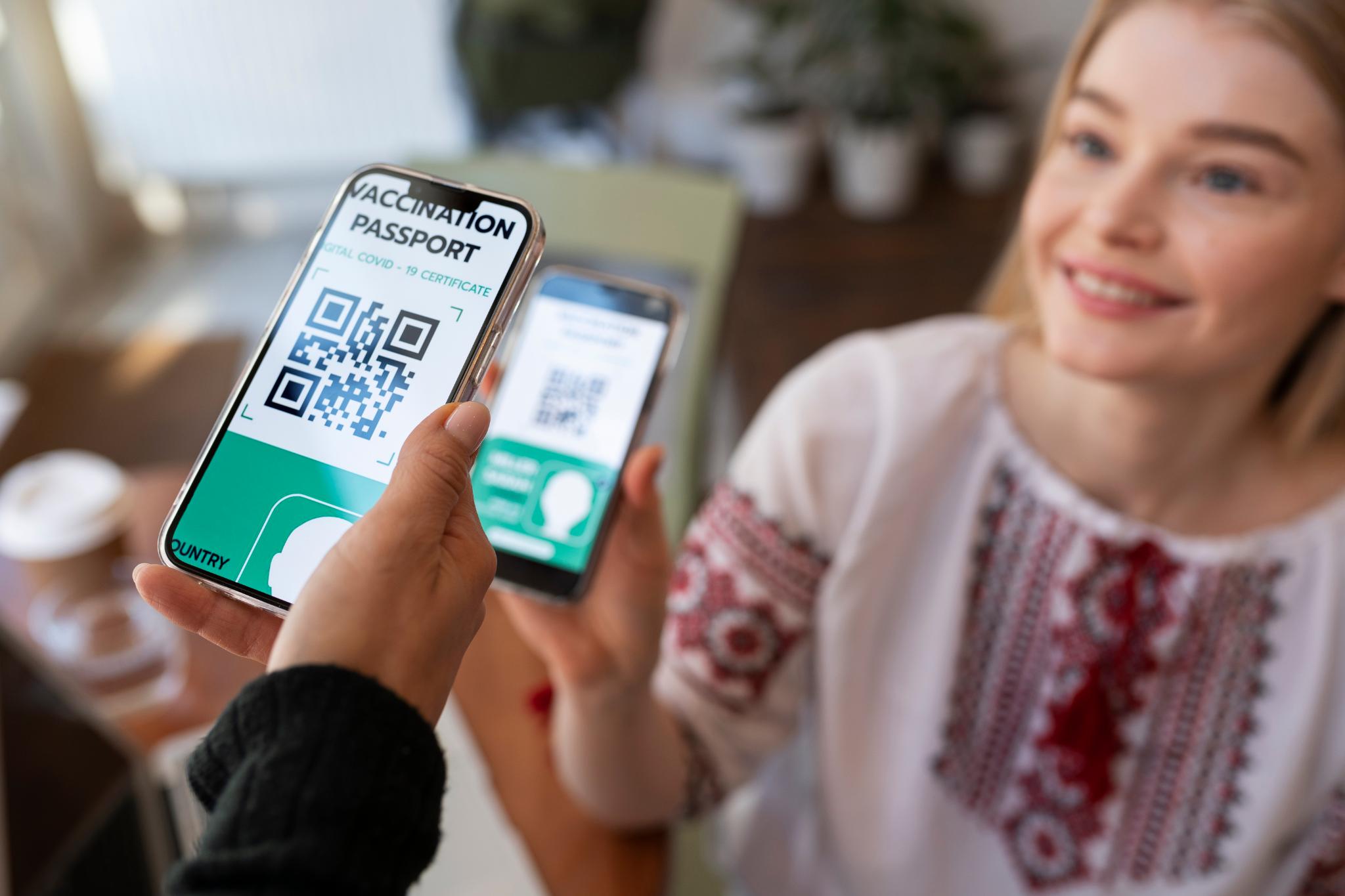
QR codes are easy to scan when they are printed on a poster, menu, product box, or screen. You simply point your camera at the code and tap the link.
But things get tricky when the QR code is inside a screenshot or saved photo.
Many iPhone users run into this problem when someone sends a QR code through WhatsApp, email, Instagram, or a group chat. The QR code looks perfectly fine, but the iPhone camera does not detect it because it is not scanning live.
In this guide, you will learn the best ways to scan QR codes from saved images on iPhone, why the built-in tools sometimes fail, and the fastest solution when you need results instantly.
Why QR Codes in photos are harder to scan.
Scanning a QR code with your camera works because the iPhone detects the code in real time.
But when a QR code is saved as an image, your phone has to recognize it inside a photo file. That process depends heavily on image clarity, resolution, contrast, and how the QR code was captured.
Even small issues like blur, compression, or cropping can prevent iOS from detecting the QR code properly.
This is why QR codes inside screenshots often fail even though the same QR code scans instantly when printed.
Method 1: Scan a QR Code using the Photos app.
This is the easiest option because it does not require downloading anything.
Steps to scan a QR code from Photos:
Open the Photos app on your iPhone
Tap the screenshot or image containing the QR code
Press and hold your finger on the QR code
If your iPhone detects it, a link or action will appear
Tap the result to open it
In many cases, iOS will automatically recognize the QR code and show a clickable link at the top of the image.
When this works best
The QR code is large and centered
The image is not blurry
The code is not cropped
The screenshot has good lighting and contrast
Common issues with this method
Even if your QR code is valid, this method may fail if:
the QR code is too small
the image was compressed by a messaging app
the screenshot quality is low
the QR code has a design overlay or custom colors
Method 2: Scan a QR Code using Live Text.
Live Text is an iPhone feature that can detect text, phone numbers, and sometimes QR codes inside images.
This method works on supported iPhones running newer iOS versions.
Steps to try Live Text scanning:
Open Photos
Tap the image containing the QR code
Look for the Live Text icon
Tap the QR code if it becomes interactive
Open the detected link
This method is useful, but it is not consistent. Live Text was built mainly for text recognition, so it may not detect every QR code format.
Why your iPhone may not detect QR Codes in screenshots.
If your iPhone is not scanning a QR code from a screenshot, it usually comes down to one of these common reasons.
The QR code is too small
QR codes need enough visible detail for the scanner to recognize the pattern. If the QR code takes up only a small part of the screenshot, iOS may fail to detect it.
The screenshot is blurry or compressed
Many apps compress images automatically. QR codes shared through messaging apps often lose quality, which makes them harder to scan.
The QR code is cropped or partially hidden
Even a small cut on the edge can break detection. QR codes need clean borders to scan properly.
The contrast is too low
If the QR code uses light colors, a background pattern, or a poor design, scanning becomes difficult.
The QR code is damaged or distorted
If the QR code was photographed at an angle, printed on curved packaging, or taken from a screen with glare, it may not scan properly.
These issues are extremely common with travel passes, WiFi QR codes, ticket screenshots, and payment QR codes.
The most reliable way to scan QR Codes from saved images.
If you scan QR codes from screenshots regularly, the fastest and most reliable solution is using a dedicated QR code reader app. Unlike the iPhone camera or Photos app, a scanning app is designed specifically to detect QR patterns, even in imperfect images.
A good QR code scanner app can:
detect QR codes in screenshots instantly
scan from saved images and camera roll
handle low-quality or compressed QR images
scan faster than built-in tools
keep scan history for later access
preview the result before opening the link
This is especially useful if you often scan QR codes for:
travel check-ins
digital tickets
online payments
event entry passes
restaurant reservations
WiFi access
The Air Apps' QR Code Reader is built for iPhone users who want faster scanning and more control, especially when scanning QR codes from saved photos and screenshots.
How to scan QR Codes from screenshots using Air Apps' QR Code Reader
If your iPhone is not detecting the QR code inside a photo, this is the easiest workaround.
Steps:
Open the Air Apps' QR Code Reader
Tap the option to scan from your photo library
Select the screenshot or saved image containing the QR code
Let the app detect the QR code automatically
Review the result and open it when ready
This is one of the fastest ways to scan QR codes that are stored in your camera roll, especially when the Photos app fails.
Tips to scan QR Codes from blurry or cropped images.
If a QR code is not scanning, you do not always need a new image. Small adjustments can fix the problem.
Zoom in slightly
If the QR code is small in the image, zoom in so the code fills more of the screen.
Increase brightness
If the screenshot is dark, raise your screen brightness. Some scanners detect QR patterns better when contrast is improved.
Avoid glare and reflections
If you are scanning from another screen, tilt the phone slightly to reduce reflection.
Use a clearer screenshot if possible
If the QR code was sent to you, ask for the original image instead of a compressed version.
Do not crop too tightly
Make sure the QR code borders are visible. QR codes scan best when the full square is included.
How to scan QR Codes safely before opening links.
QR codes are convenient, but they can also be used for scams. Some QR codes redirect users to fake websites, phishing pages, or malicious downloads. Before opening any QR code result:
check the website domain carefully
avoid entering passwords or payment details unless you trust the source
be cautious with QR codes placed on random stickers in public areas
avoid QR codes sent from unknown numbers or suspicious emails
A safe scanning habit is to always preview the destination before clicking.
If you want to understand QR code risks and how QR codes store links, this guide is helpful: what is a QR code.
FAQs.
Can iPhone scan QR codes from screenshots?
Yes, iPhone can scan QR codes from screenshots using the Photos app, but it does not work consistently for all images.
Why does my iPhone not scan QR codes from Photos?
This can happen if the QR code is too small, blurry, compressed, cropped, or has poor contrast. Messaging apps often reduce image quality, which affects scanning.
Can I scan QR codes from saved images without an app?
Sometimes. The Photos app can detect QR codes in images, but it may fail depending on image quality. A dedicated QR scanner app is more reliable.
What is the easiest way to scan a QR code from a photo?
The fastest method is using a QR code reader app that supports scanning directly from your photo library.
Do QR codes in screenshots work the same as printed QR codes?
Not always. Screenshots often have reduced resolution or compression, which makes detection harder compared to scanning a printed QR code.
Final thoughts.
Scanning a QR code from a screenshot or photo on iPhone should be simple, but the built-in tools are not always reliable.
If the QR code image is clear and high quality, the Photos app may work. But if you frequently scan QR codes from screenshots, tickets, saved images, or shared photos, a dedicated scanner is the fastest solution.
The Air Apps' QR Code Reader makes it easy to scan QR codes from your camera roll instantly, preview links safely, and access scan history whenever you need it.
If you also want a guide for scanning QR codes in real life using your camera, check out our step-by-step tutorial on how to scan a QR code on iPhone.