How to scan a QR Code on iPhone (Step-by-step guide for 2026)
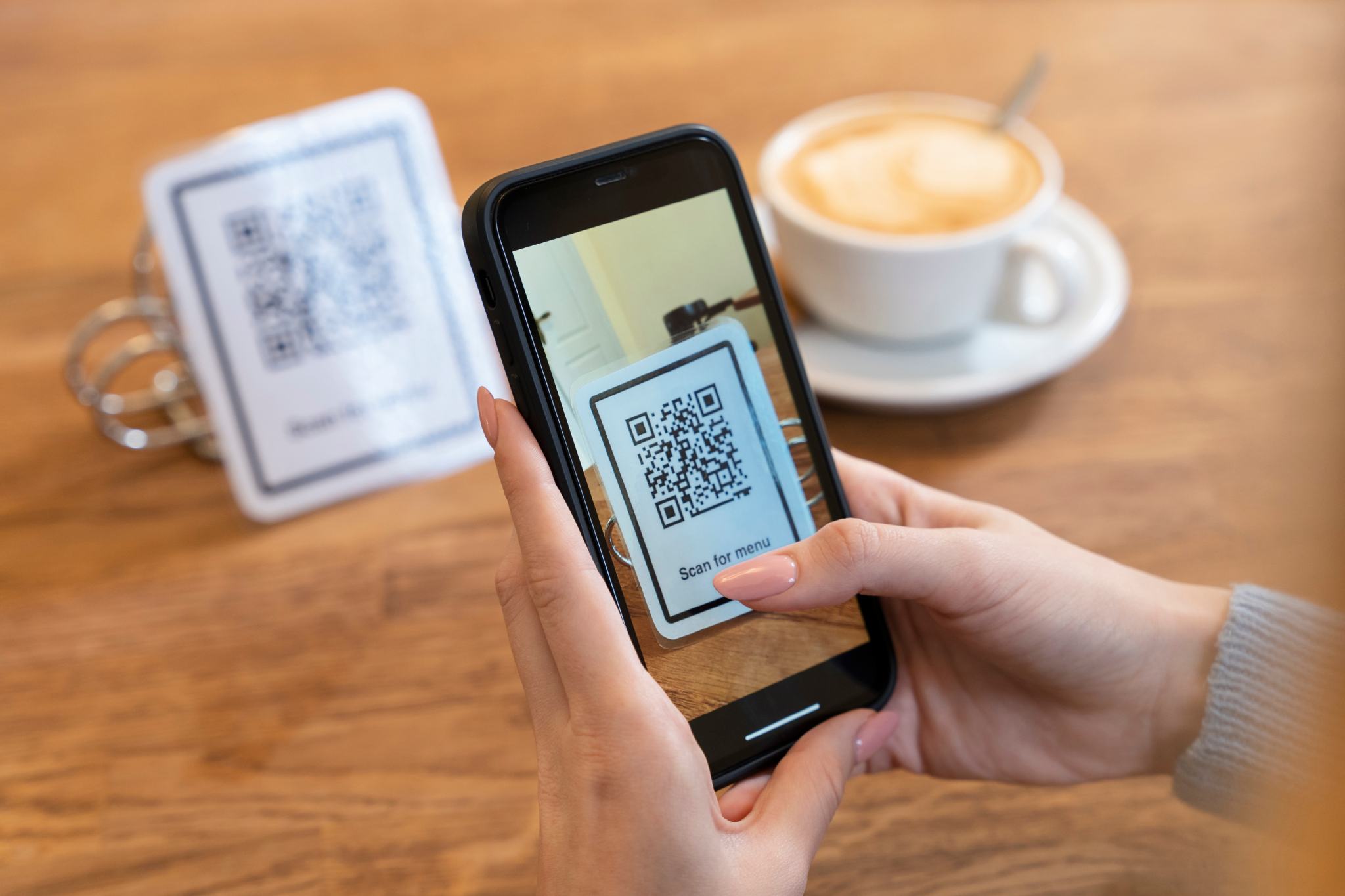
Scanning a QR code on iPhone is quick and easy, but many users still run into common issues like QR codes not scanning, the camera not detecting the code, or needing to scan a QR code from a screenshot.
The good news is that iPhones have built-in QR scanning features, and if you want faster scanning, scan history, and better reliability, a dedicated QR code reader app can make the experience much smoother.
This guide shows exactly how to scan a QR code on iPhone, including the best methods and solutions if it is not working.
How to scan a QR Code on iPhone using the camera app
This is the easiest and most common method.
Steps:
Open the Camera app on your iPhone
Point your camera at the QR code
Hold steady for a second or two
Tap the pop-up notification that appears at the top of your screen
Your iPhone will open the link, menu, payment page, or action automatically
This works for most QR codes on packaging, posters, menus, and screens.
Best tip:
Keep the QR code centered and make sure there is enough light. If the camera struggles, move slightly closer or adjust the angle.
How to scan a QR Code on iPhone using control center
If you scan QR codes often, this is faster than opening the camera manually.
Steps:
Open Control Center
Swipe down from the top right corner (Face ID iPhones)
Swipe up from the bottom (older models)
Tap Code Scanner
Point your camera at the QR code
Tap the result when it appears
Why this method is useful:
It opens a dedicated QR scanner interface
It is faster than the full camera app
It works better for quick scans
If you do not see “Code Scanner” in Control Center, you can enable it in:
Settings → Control Center → Add Code Scanner
How to scan a QR Code from a photo or screenshot on iPhone
This is where many users get stuck.
If someone sends you a QR code image on WhatsApp, Instagram, email, or you saved a screenshot, the camera app cannot scan it directly because the code is inside your photo gallery.
The easiest way is to use the Photos app.
Steps:
Open the Photos app
Tap the image or screenshot containing the QR code
Press and hold the QR code (or tap the small scan icon if it appears)
Tap the link or action that pops up
This works on iPhones running newer iOS versions, but it is not always reliable for every QR code format.
If it does not work:
That is when a dedicated QR code scanning app becomes the best solution, especially if you scan QR codes from screenshots often.
The Air Apps QR Code Reader can scan QR codes directly from saved images and screenshots, which makes it ideal for travel tickets, payment codes, and online check-ins.
How to scan a QR Code on iPhone without an app
Technically, you do not need an extra app because iPhone has built-in scanning. But here is the honest truth.
The built-in camera is fine for basic QR codes, but it lacks useful features like:
Scan history
Saved QR results
Faster recognition
Scan from images more reliably
Organized scanned links
Better low-light scanning performance
So yes, you can scan without an app. But if you scan QR codes regularly, using a QR code reader app is much more convenient.
Why your iPhone is not scanning a QR Code
If your iPhone is not scanning QR codes, it is usually caused by one of these common problems.
1. QR Code scanning is disabled in settings
Fix it like this:
Open Settings
Go to Camera
Turn on Scan QR Codes
Once enabled, your iPhone camera should detect QR codes instantly.
2. The QR Code is too small or blurry
If the QR code is printed too small or displayed on a low-quality screen, your camera may not read it.
Fix:
Move closer slowly
Clean your camera lens
Increase screen brightness if scanning from another phone
3. Lighting is too dark
Low light is one of the most common reasons QR scanning fails.
Fix:
Move to a brighter area
Use flash if available
Tilt the phone slightly to reduce glare
A dedicated scanning app like Air Apps QR Code Reader usually performs better in challenging lighting conditions.
4. The QR Code is damaged
If the QR code is scratched, torn, or smudged, scanning becomes harder.
QR codes have error correction, so they may still work, but only if enough of the code is visible.
Fix:
Try scanning from a different angle
Step back slightly so the full code fits in the frame
Use an app that scans faster and detects partial codes more effectively
5. The QR Code leads to a suspicious link
Some QR codes are unsafe and can redirect you to malicious websites.
If you scan a QR code and it looks suspicious, do not enter any personal information.
Using a secure scanner app that shows you the full URL before opening it is a smart move.
For a deeper understanding of what is a QR code and how it works, it helps to know what information QR codes can store and why some scans can be risky.
Best way to scan QR Codes faster on iPhone
If you only scan QR codes occasionally, the camera method is enough.
But if you scan QR codes frequently, for example:
restaurant menus
travel check-ins
boarding passes
WiFi access
payment QR codes
product packaging
event tickets
then speed and reliability matter.
A QR code reader app is usually faster because it is built specifically for scanning, not photography.
With the Air Apps' QR Code Reader, you get:
fast QR detection
scan history
reliable scanning from screenshots and photos
smoother performance for daily scanning
This makes it a better choice for users who scan QR codes regularly.
How to scan QR Codes safely on iPhone
QR code scams are increasing, especially in public places like parking meters, cafes, airports, and events.
Here are quick safety tips:
Avoid scanning QR codes placed on random stickers
Always check the link before opening it
Do not enter passwords or payment info unless you trust the source
Use a QR scanner that previews links before redirecting
This is another reason many iPhone users prefer using a dedicated QR scanner instead of relying only on the camera.
FAQs
Can iPhone scan QR codes automatically?
Yes. The Camera app detects QR codes automatically if scanning is enabled in Settings.
Why does my iPhone not show the QR code link?
This can happen if QR scanning is disabled, the code is blurry, or the lighting is too dark. A QR code reader app can also solve this issue.
Can iPhone scan QR codes from Photos?
Yes, newer iPhones can scan QR codes inside images using the Photos app, but it does not always work perfectly.
What is the best QR code scanner for iPhone?
If you want fast scanning, scan history, and better performance from screenshots and saved images, a dedicated app like Air Apps' QR Code Reader is a strong option.
Final thoughts
Scanning a QR code on iPhone is easy once you know the right method.
For quick scans, the Camera app and Control Center scanner work well. But if you scan QR codes often, scan from screenshots, or want a smoother experience with scan history and faster detection, using a dedicated QR code reader app is the better option.
Try the Air Apps' QR Code Reader for iPhone and scan QR codes faster, safer, and with more control.